
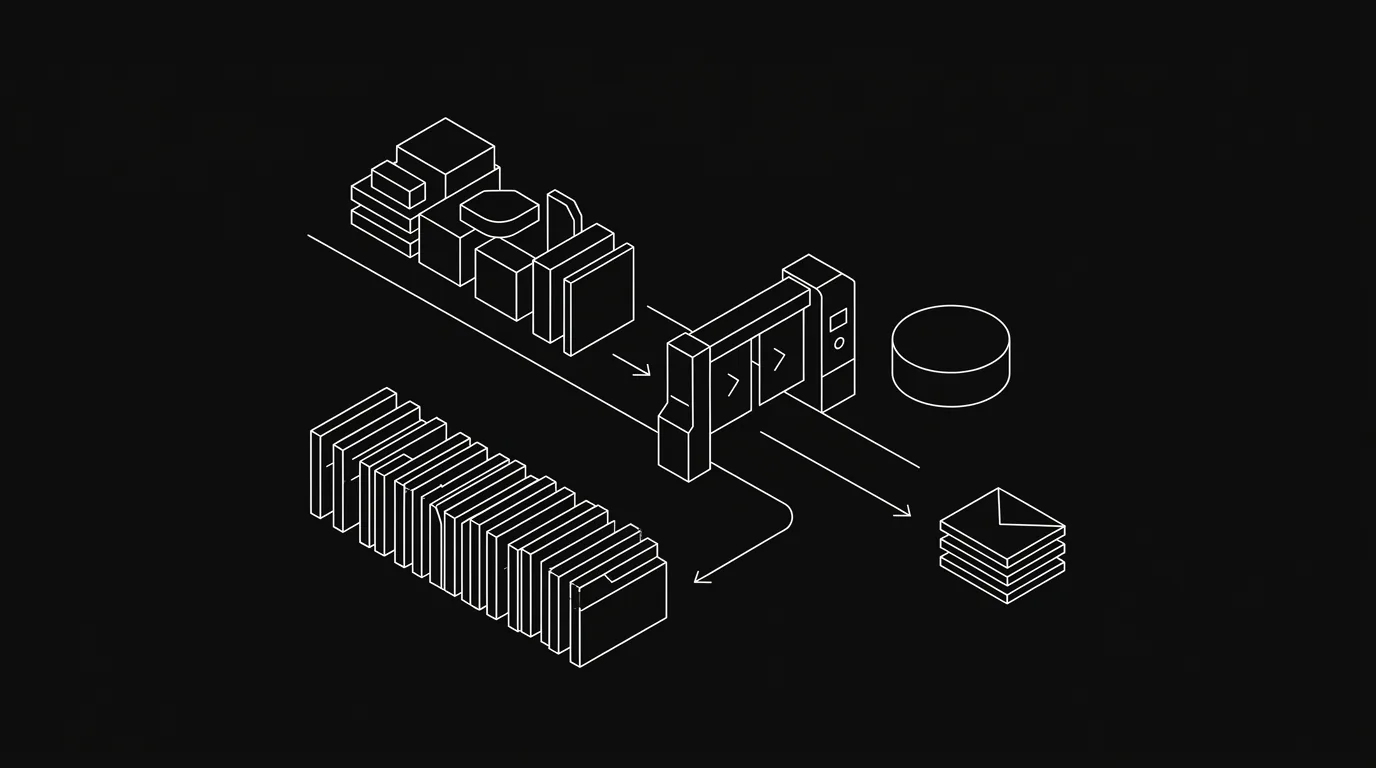
Your task board is only useful when it’s accurate. But keeping it accurate — triaging every notification, archiving resolved threads, flagging what actually needs your attention — is itself a job. It’s not the work. It’s the overhead around the work. AI triage changes that: the AI reads your inbox, classifies every item as safe-to-archive or needs-your-input, and bulk-archives the rest on your approval. One button. Done.
The Bottom Line
- Manual board triage is overhead, not work — and it compounds as your team and agent count grows.
- Hypertask’s dedicated AI Triage button (shipped 2026-03-28) reads your full inbox and classifies what can be archived vs. what needs you.
- You review the list and approve. The AI archives in bulk. That’s the whole flow.
- The same inbox layer that clears your human notifications is how AI agents post and read updates — no separate relay needed.
Why Is Keeping a Task Board Accurate So Draining?
The board doesn’t update itself. Every time a task changes state, someone has to go in and move it. Every notification that arrives — a comment, a status ping, a teammate’s reply — sits in your inbox until you decide what to do with it. If you’re on a small team or running AI agents alongside humans, the volume compounds quickly.
The result is predictable: boards drift from reality within days. People stop trusting the board, stop updating it, and start working from Slack and memory instead. The board becomes decoration.
Once work moves back to chat, the structural problem behind buried Slack replies takes over: a thread has conversation, but no durable owner or state.
This isn’t a discipline problem. It’s a design problem. The cost of keeping a board accurate was built into the workflow from the start, and nobody budgeted for it.
If you want the full breakdown of what that cost looks like over time, the real cost of notification overload puts numbers to the pattern. The short version: context-switching and manual triage eat hours you didn’t plan to spend.
What Does Task Board Automation Actually Mean?
Not a bot that dumps everything into “Done.” Real task board automation means the system understands the difference between a notification that requires your judgment and one that doesn’t. That distinction is what makes triage useful rather than just fast.
Hypertask’s approach is an inbox model: every message on your board — comment, status change, agent reply — lands in your inbox, anchored to its task. Nothing floats. Nothing gets lost. And because everything is threaded to a task, the AI can read the context around each message, not just the message itself.
That’s the part that makes automatic task board updates possible. The AI isn’t guessing. It’s reading the full thread.
The async project management guide covers the inbox architecture in more depth if you want the underlying model before walking through the triage flow.
How the AI Triage Flow Works, Step by Step
This is the concrete thing. The AI Triage button shipped on 2026-03-28 as a dedicated entry point in the Hypertask inbox. Before that, triage was only available through the AI chat interface — you had to know to ask for it. Now it’s one click.
Here’s the flow:
- Open your inbox. Everything that needs attention is threaded there, anchored to its task.
- Hit the AI Triage button. The AI reads every item in your inbox.
- The AI classifies. Each item gets one of two labels: safe to archive (no input required from you) or needs your attention (requires a decision, a reply, or a judgment call).
- The AI presents the list. You see what it found — a structured summary of what can go and what should stay.
- You approve. One confirmation and the AI bulk-archives everything in the safe-to-archive category.
- What’s left is real. Your inbox now contains only the things that actually need you.
The whole pass takes seconds for a typical inbox. For a larger one, a minute. Either way, it’s faster than reading each item yourself and deciding one at a time.
Before and After
| Before AI Triage | After AI Triage |
|---|---|
| 40+ inbox items, mixed urgency | Only items requiring your judgment |
| Manual read-and-decide per item | Single approve action |
| Board state drifts between sessions | Board reflects current reality |
| You’re the triage layer | You’re the decision layer |
The shift isn’t about speed alone. It’s about what you’re doing. Triage is pattern recognition at scale — exactly the kind of task an AI handles well. Decision-making on the items that remain is where your judgment matters.
If the goal is to keep the inbox clear after that first pass, pair the triage flow with a fixed-window inbox-zero method instead of reopening the queue all day.
What the AI Is Actually Reading
In demos with prospective users, the flow that gets the clearest response is this one: open the inbox, say “can you triage this? Just list everything that doesn’t need my input” — and watch it work through the inbox, thread by thread, outputting a clean list of what can go.
The AI reads the task context, not just the notification. A comment saying “looks good to me” on a task that’s already in review — safe to archive. A comment asking “should we scope this differently?” on a task in planning — needs your input. The difference is legible from the thread, and the AI reads the thread.
This is the distinction that makes AI triage genuinely useful: most notification systems tell you that something happened. The inbox model tells you what it means in context. That’s why bulk-archiving with AI confidence is possible here in a way it isn’t with a raw notification feed.
How Does This Connect to AI Agents on the Board?
Here’s where the architecture matters for teams running AI agents alongside human contributors. The inbox that your AI triage button reads is the same inbox where your AI agents post their updates.
When you invoke an agent on a task, it works in the background. When it finishes — or needs input — it replies in the inbox, threaded to the task. Not a separate chat window. Not a terminal log. The inbox. Just like a teammate would.
That means agent activity goes through the same triage layer as human activity. When the agent posts “completed initial review, flagged two issues for your judgment,” that message arrives in your inbox and gets classified by the same triage logic. If the agent is self-reporting completion, the AI triage can archive that and surface the two flagged issues to you directly.
The board stays accurate without you manually relaying what the agent did. The agent writes to the board. The triage layer processes it. You see what needs you.
That shared-board model is the foundation of agent-driven project management: agents need to read, write, and report inside the same system humans trust.
This is the same layer that lets you track what your agents actually did — covered in detail in AI work attribution: what did your agents do? If you’re running agents on real work, that post is worth reading alongside this one.
For the access patterns underneath — how agents read and write to the board — the CLI vs MCP comparison covers the mechanics.
Who Gets the Most From This?
Task board automation through AI triage pays off fastest for specific patterns. Here’s where the difference is sharpest.
Solo founders and operators. You’re both the PM and the contributor. The board exists to keep you organised, not to coordinate a team. Manual triage takes time you don’t have. AI triage gives you the benefit of a board without the overhead of maintaining it.
Small engineering teams with async workflows. If your team is across time zones and works in focused blocks, a cluttered inbox breaks flow. Clearing it in one pass at the start of a session means you can start actual work faster.
Teams running AI agents. As described above, agent activity lands in the same inbox as human activity. Without triage, that inbox grows faster than you can manually clear it. With it, agent updates that don’t need your input are handled automatically.
The team case study on reaching inbox zero shows what the pattern looks like at the team level — including the before state that most teams recognise immediately.
Frequently Asked Questions
Does AI triage just archive everything automatically?
No. The AI classifies each item but doesn’t archive anything without your approval. You see the full list of what it thinks can go, review it, and confirm. The bulk-archive only happens after you approve. The items it flags as needing your input stay in your inbox untouched.
What makes something “safe to archive” vs. “needs your input”?
The AI reads the full task thread, not just the notification text. A status update on a task that’s already resolved, a comment confirming agreement, or an agent reporting completion are typically safe to archive. Anything requiring a decision, a reply, or a judgment call — a question, a conflict, a flagged issue — gets surfaced to you.
Can AI triage handle an inbox with hundreds of items?
The triage button reads the full inbox regardless of volume. In practice, the classification is fast because it’s reading structured data (task state, thread context, sender) rather than open-ended text. A large inbox will produce a longer list for you to review, but the approval step is still a single confirmation.
How is this different from just muting notifications?
Muting stops new notifications but doesn’t resolve the ones already there, and it breaks the signal you need when something genuinely requires your attention. AI triage keeps the signal intact — it just removes the noise. The items that need you still surface. The ones that don’t are gone.
Does this work for AI agent activity as well as human messages?
Yes. Agent replies arrive in the inbox threaded to their task, identical in structure to human replies. The AI triage reads them the same way. If an agent is reporting completion on a task that’s already in a resolved state, that update is typically safe to archive. If the agent flagged something for your review, it stays.
Start Here
If your task board has drifted — or if you’re spending more time on triage than on actual work — the AI Triage button is the fastest way to reset. Open your inbox, hit the button, approve the list. That’s the whole flow.
You can see the feature alongside the full inbox model at hypertask.ai/features. The docs cover the inbox architecture in detail. If you want to try it with your own board, sign up free at app.hypertask.ai — no credit card, and the AI Triage button is available on all plans.
If async coordination for a whole team is the real problem, the async communication playbook for remote teams is the logical next read.
The Bottom Line
- Keeping a task board accurate is overhead, not the work itself — and the cost compounds as your team and agent count grow.
- Hypertask’s AI Triage button reads your whole inbox, classifies each item as safe-to-archive or needs-your-input, and bulk-archives on your approval.
- The shift is what you spend attention on: triage is pattern-matching the AI handles, so the decisions that remain are the ones only you can make.
- The same inbox the triage button clears is where AI agents post their updates — so agent activity gets triaged the same way, with no manual relay.